81uieia0axl ac sl1500 1773187262
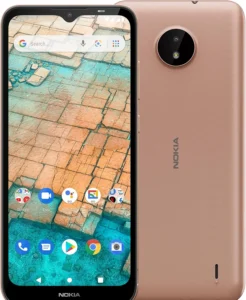
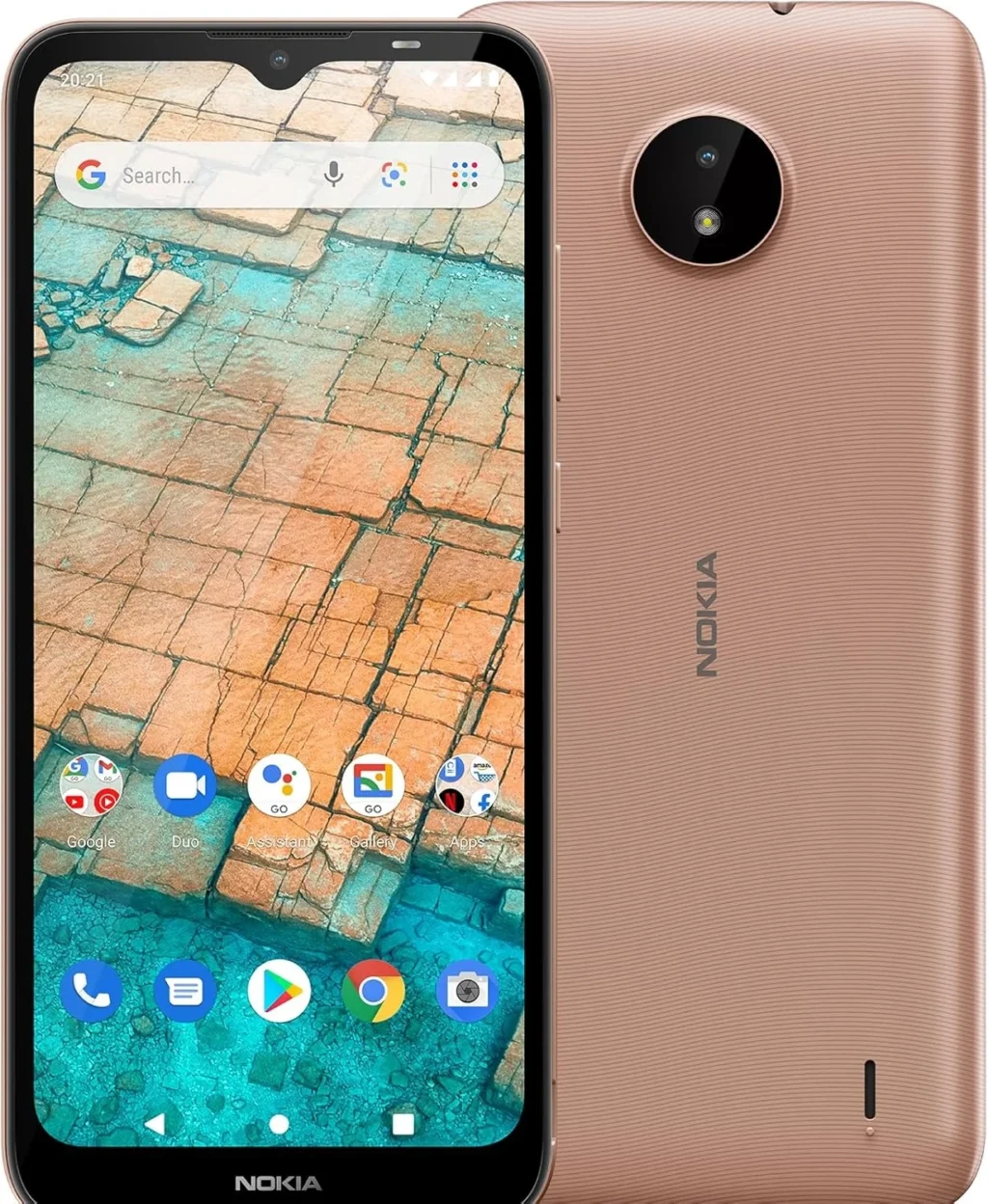
Nokia C20 2-Day Battery 6.52-Inch Smartphone
Product Description: Nokia C20
Life is to be lived. The Nokia C20 helps you live it better. It features impeccable Scandinavian design, sturdy build quality, and an all-day battery. A fast processor and Android 11 (Go edition) help it handle daily tasks. Enjoy a big HD+ screen and speedy 4G connectivity for movies on-the-go. Share your moments beautifully with a quality camera that has a flash on both sides.
Compatibility & Network:
This GSM device is not compatible with Verizon or its subsidiaries. Confirm compatibility with your carrier before purchase. For network or SIM issues, contact your carrier directly.
Supported Network Bands:
- 2G: 850 / 900 / 1800 / 1900
- 3G: 850 / 900 / 1700(AWS) / 1900 / 2100
- 4G/LTE: 1, 2, 3, 4, 5, 7, 8, 12, 17, 28, 66
Charing & Safety:
Use only the provided charger and cable. Charging with other equipment may cause malfunction. Do not use damaged charging equipment and observe basic safety.
Technical Specifications:
- Current Software Version: Android 10
- Bluetooth Version/Range: 4.2 / ~30 ft range
Frequently Asked Questions (FAQ):
Software & Updates:
- Install Updates: Go to Settings > System > System update > Check for update.
- Close Unresponsive App: Go to Settings > Apps, select the app, then choose Force Stop.
- Back Up Files: Go to Settings > System > Backup and switch backup on.
- Reset Network Settings: Go to Settings > Network & Internet > More > Reset.
Battery & Power:
- Activate Power Saver: Go to Settings > Battery and activate Power Saving. Note: Battery life depends on usage, apps, OS, and signal strength.
- Phone Feels Warm/Slow: This can be normal during extended use. The device may automatically slow down, dim the display, close apps, or stop charging to manage temperature. If problems persist, seek authorized service.
- Phone Won’t Charge: Check the power outlet and cable. Inspect the phone’s charging port. If the battery is fully drained, turn the phone off and allow 2-3 minutes for charging to begin.
Setup & Connectivity:
- Connect to Carrier Network: Insert a compatible SIM card using the included tool. Power on and complete setup. If connection fails, contact your carrier for assistance.
- Microphone Issues: Ensure the Google Assistant button is not stuck or dirty. Check for debris in the headphone port. If issues continue, disable the Google Assistant’s microphone permission via Settings > Apps & Notifications > Google App > Permissions > Microphone > Deny.
- Low Speaker Volume: Ensure the headphone port is clean and “Do Not Disturb” is off. Adjust volume via Settings > Sound and vibration > Volume > Media slider. Also check the individual app’s volume settings.
Troubleshooting:
- Reboot Unresponsive Phone (Soft Reset): Press and hold the Volume Up and Power buttons together for about 15 seconds until the phone vibrates and restarts.
- Fix Touch Sensitivity: Ensure the screen and your hands are clean/dry, and remove any non-Nokia screen protectors. If problems persist, perform a factory reset (hard reset).
- Perform a Factory Reset (Hard Reset): This erases all data. Back up your device first. Ensure the phone is charging (battery >50% is recommended).
- Method 1: Press and hold Volume Up and Power for ~30 seconds until the root menu appears. Select “Wipe data/factory reset.”
- Method 2: Go to Settings > Backup & Reset > Factory data reset > Reset phone > Erase everything.
Contact Support:
For further assistance, visit the official Nokia customer support website.
Carrier Compatibility
- Compatible with most GSM carriers.
- Not compatible with Verizon.
- Network coverage depends on your carrier’s service area.
- Confirm compatibility with your carrier before ordering.
Product Features
- Stylish and reliable design.
- Capture life’s moments.
- Immersive entertainment on the go.
- Fast, secure access to your phone.